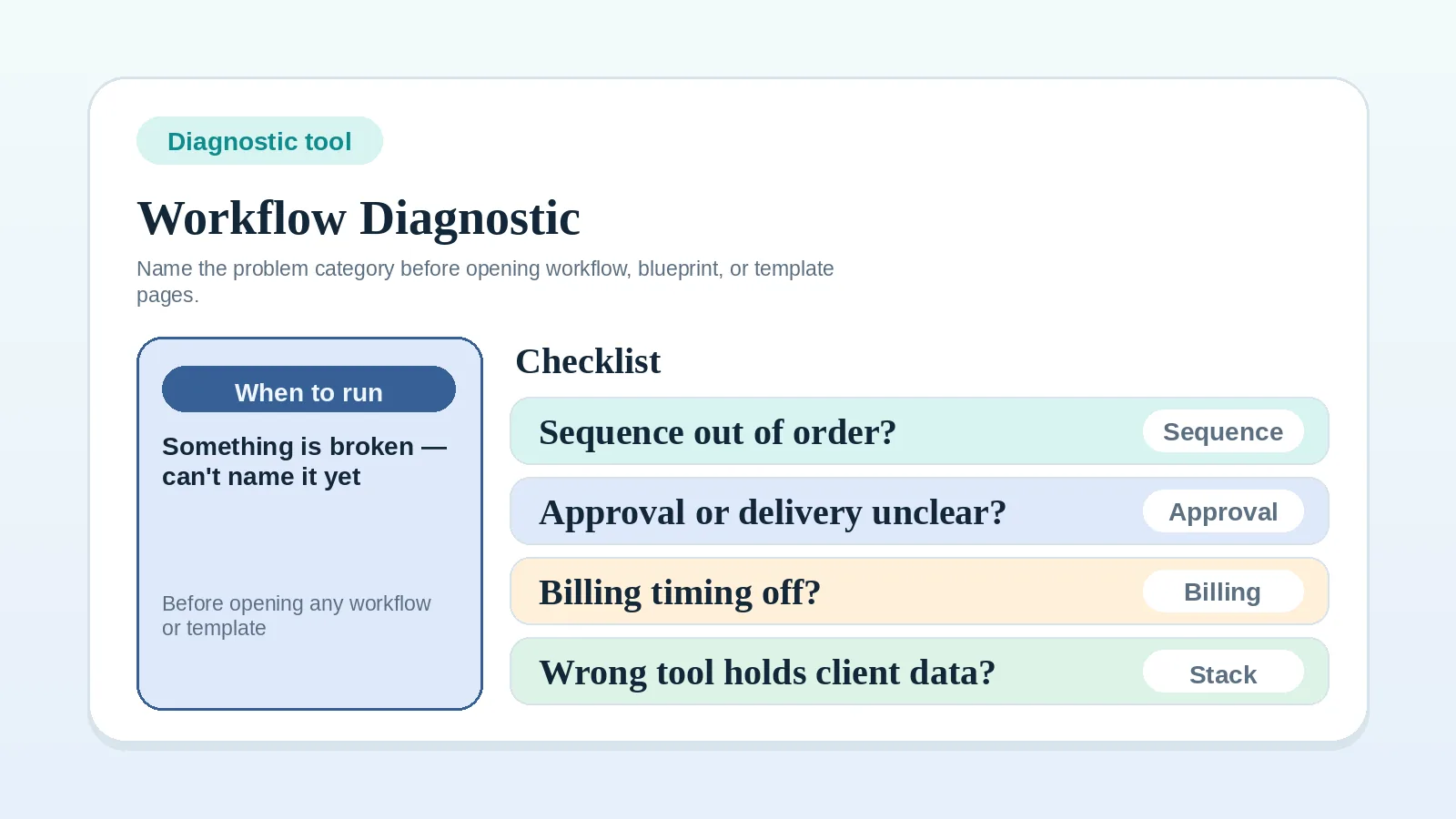
Use this checklist when something in the client workflow feels broken but you cannot yet name which part. The goal is to identify the category of the problem quickly, so you can open the right page instead of guessing.

This is a triage tool, not a workflow guide. It does not fix the problem — it names the lane so the right page can fix it.

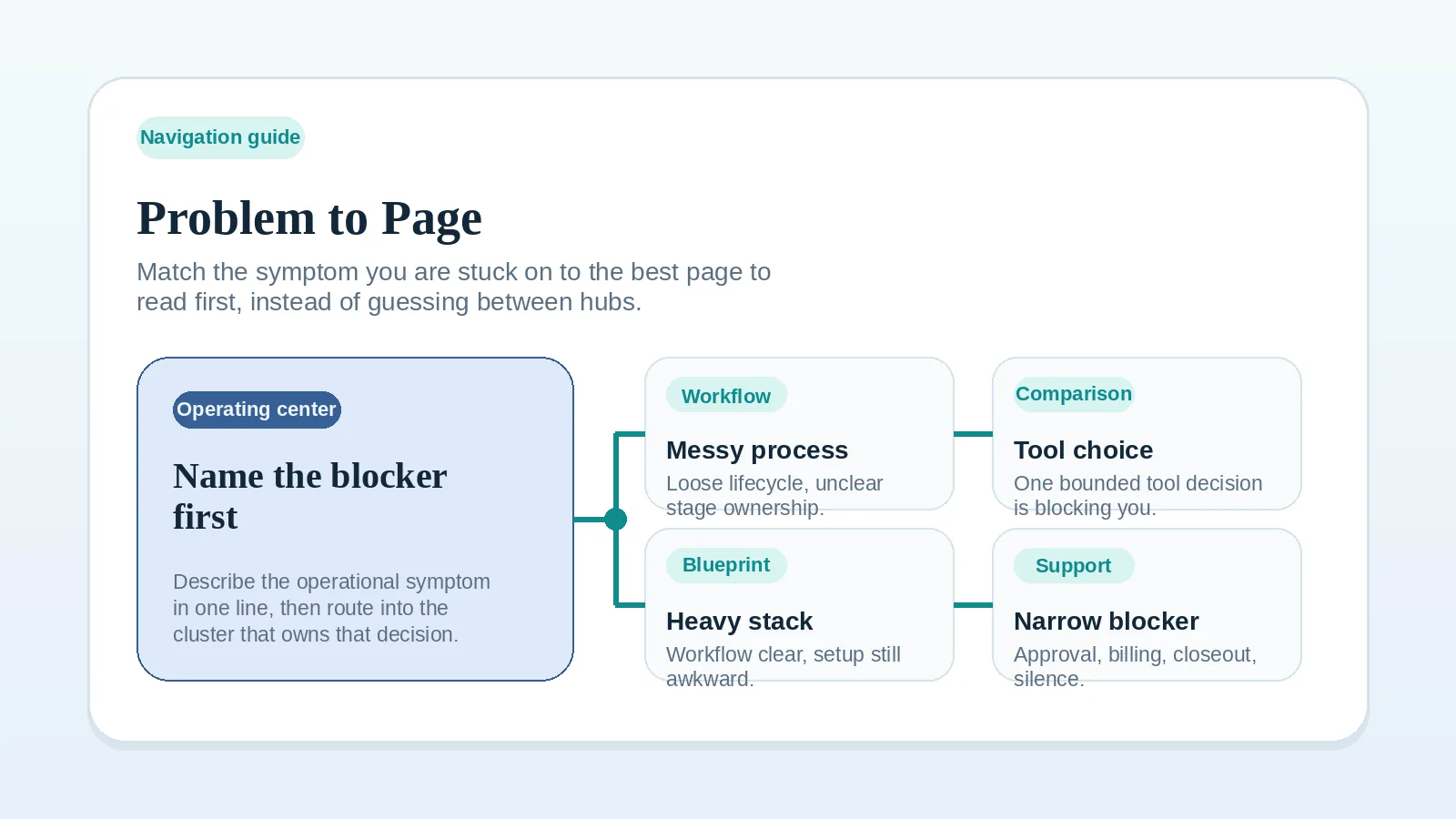
If you already know the category of your problem, skip this checklist and go directly to the Problem-to-Page Guide to find the exact page.

Start upstream first if…

  • the whole client lifecycle feels unclear, not just one part of it,
  • you have not yet read a workflow or blueprint page for the stage that is breaking,
  • you are still choosing tools and have not yet diagnosed which process step is actually the bottleneck.

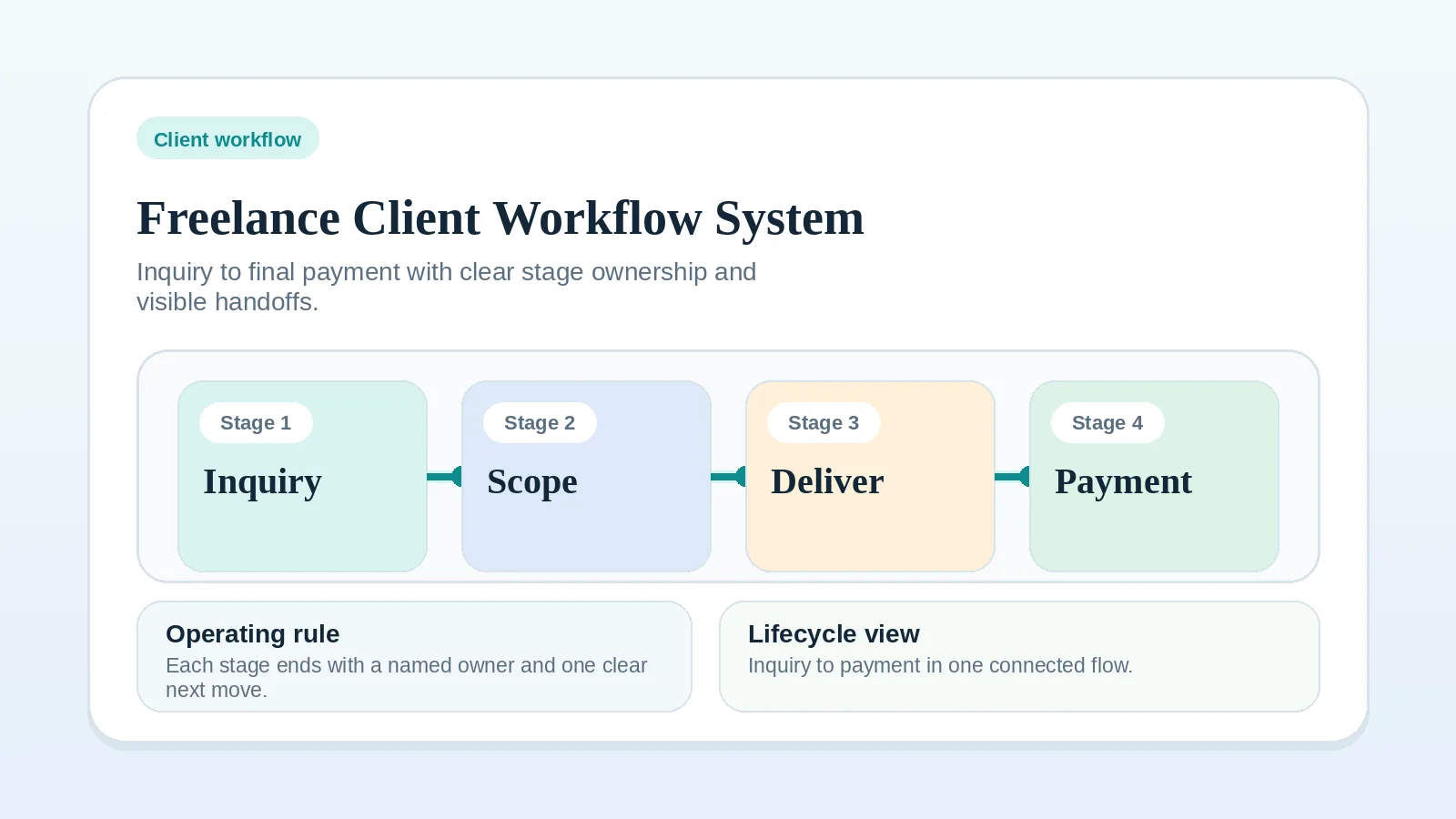
In those cases, return to Freelance Client Workflow System: Inquiry to Final Payment before using this checklist. The diagnostic is most useful when the lifecycle is mostly understood and one part is consistently failing.

How to use this checklist

Read each problem category. Check every signal that is true right now. The category with the most checked signals is the likely starting point.

If more than one category scores equally, start with the highest one in the list — workflow sequence problems usually precede approval problems, which precede billing problems.

Do not use this checklist as a substitute for the upstream workflow or blueprint page. Use it to name the lane, then follow the routing at the end of that section.


Category 1: Workflow sequence problem

Check every signal that is true:

  • Steps happen out of order — work starts before scope is agreed, invoices arrive before approval, or offboarding skips formal close.
  • Clients regularly ask “what happens next?” or do not know what the current stage is.
  • Work begins without a signed agreement, confirmed inputs, or named owner.
  • Handoffs between stages (proposal → onboarding, delivery → billing, closeout → archive) are informal or skipped.
  • The same stage keeps needing to restart because an earlier step was incomplete.

If two or more apply: The problem is most likely a workflow sequence gap.

Route: Return to Freelance Client Workflow System: Inquiry to Final Payment and identify the stage where the sequence first breaks. Do not open comparison or template pages before the stage sequence is clear.


Category 2: Approval or delivery problem

Check every signal that is true:

  • Clients say “looks good” but never clearly confirm acceptance.
  • Delivery is marked complete but billing has not started because approval still feels uncertain.
  • The approval owner — who can formally close a milestone — is not named at the start of the project.
  • Feedback arrives from multiple people through multiple channels and there is no routing rule.
  • A deliverable is submitted but the review is still technically open days later.
  • Billing starts before explicit approval, then has to be walked back.

If two or more apply: The problem is most likely an approval or delivery process gap.

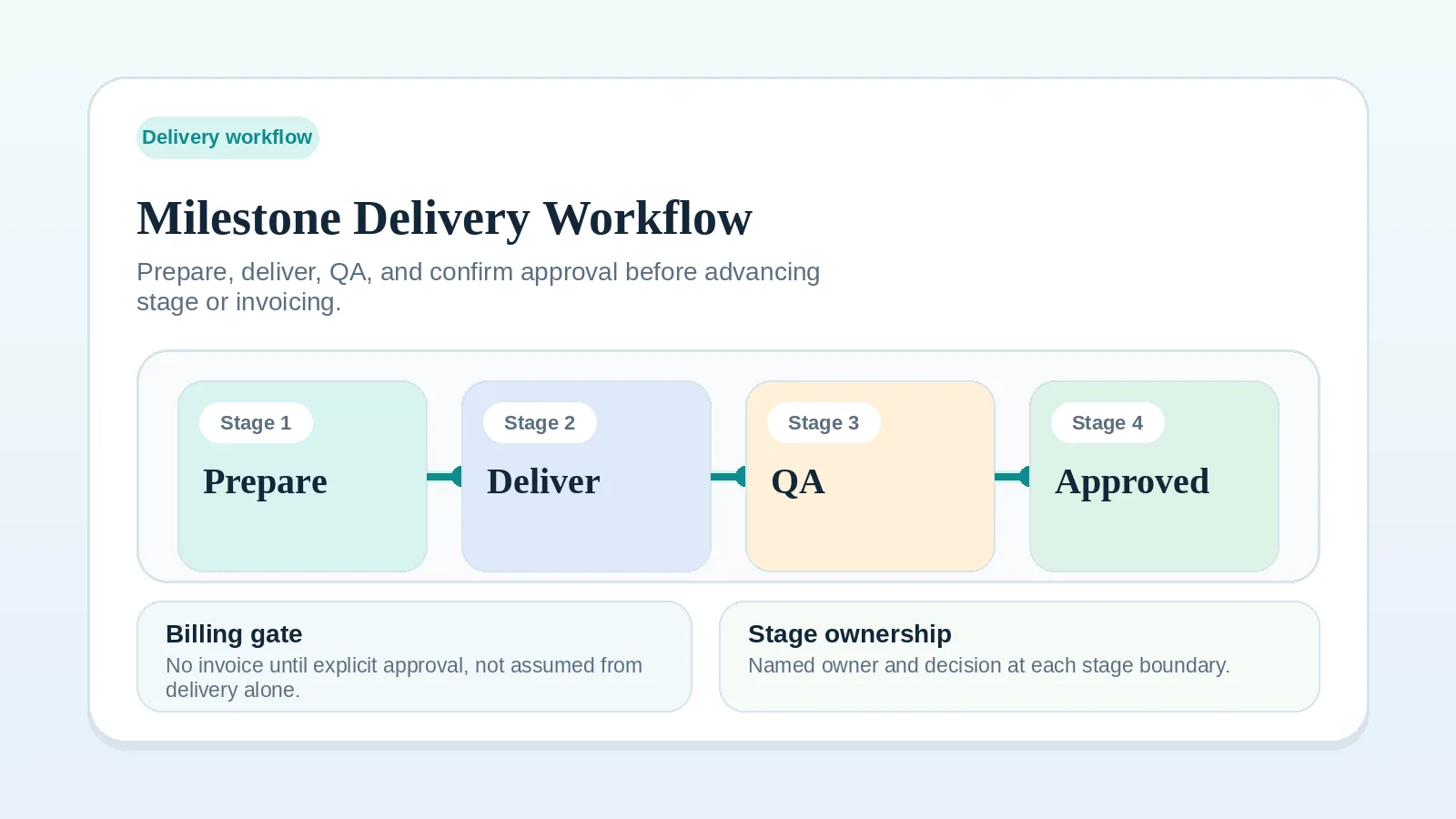
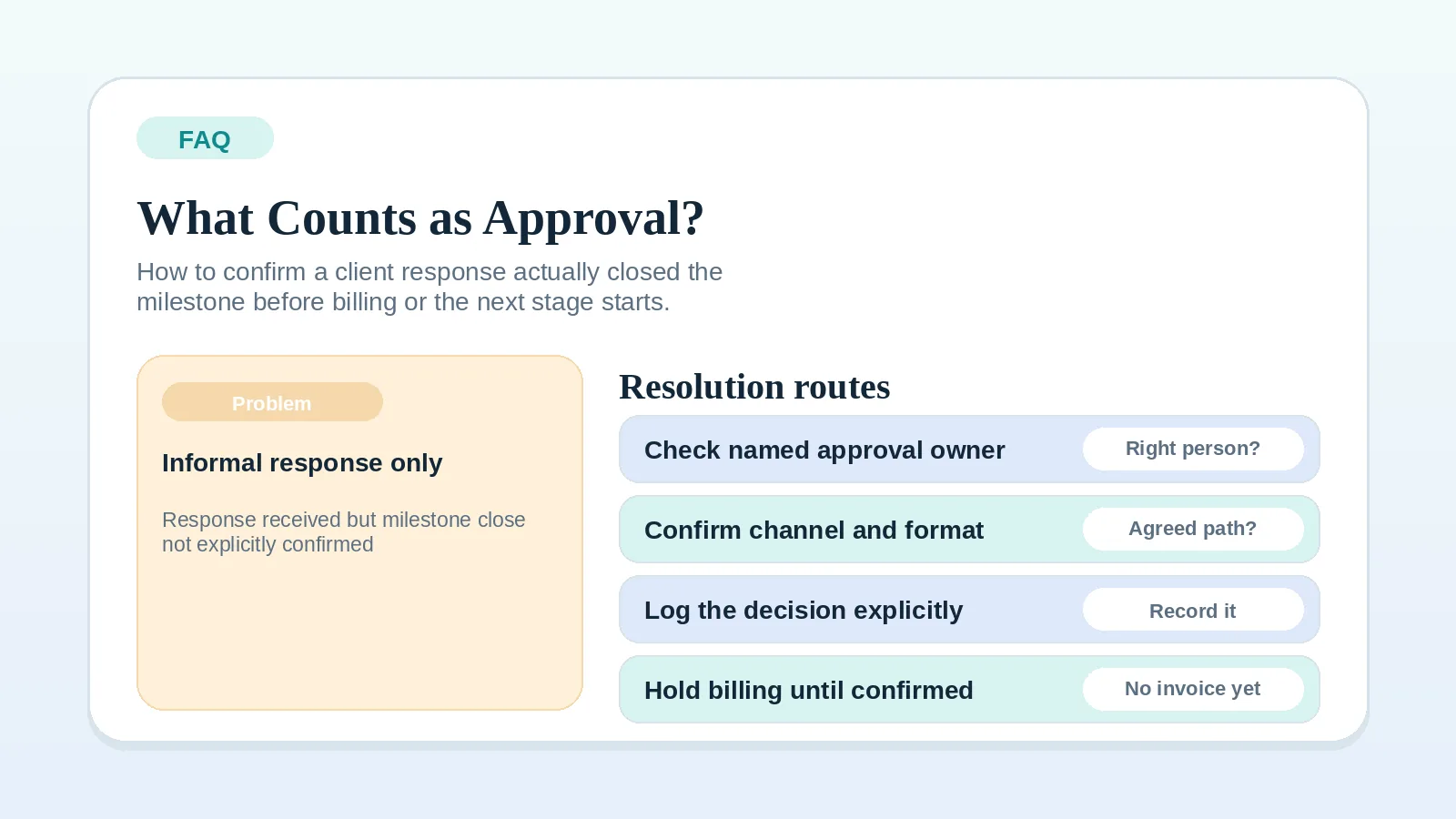
Route: Start with FAQ: What Counts as Client Approval?, then continue to Milestone Delivery Workflow to tighten the stage-close and handoff rule.


Category 3: Billing or payment-status problem

Check every signal that is true:

  • Invoice timing is unclear — billing happens when it feels right, not when a defined trigger fires.
  • Payment status lives in a tool, inbox, or spreadsheet that is not the main operating record.
  • A project is complete but closeout is blocked because a payment is unresolved or undocumented.
  • Invoice follow-up happens from memory rather than from a scheduled cadence.
  • Clients ask about payment status in channels where billing information should not live.
  • Billing slips by days or weeks after the milestone is approved.

If two or more apply: The problem is most likely a billing process or billing-visibility gap.

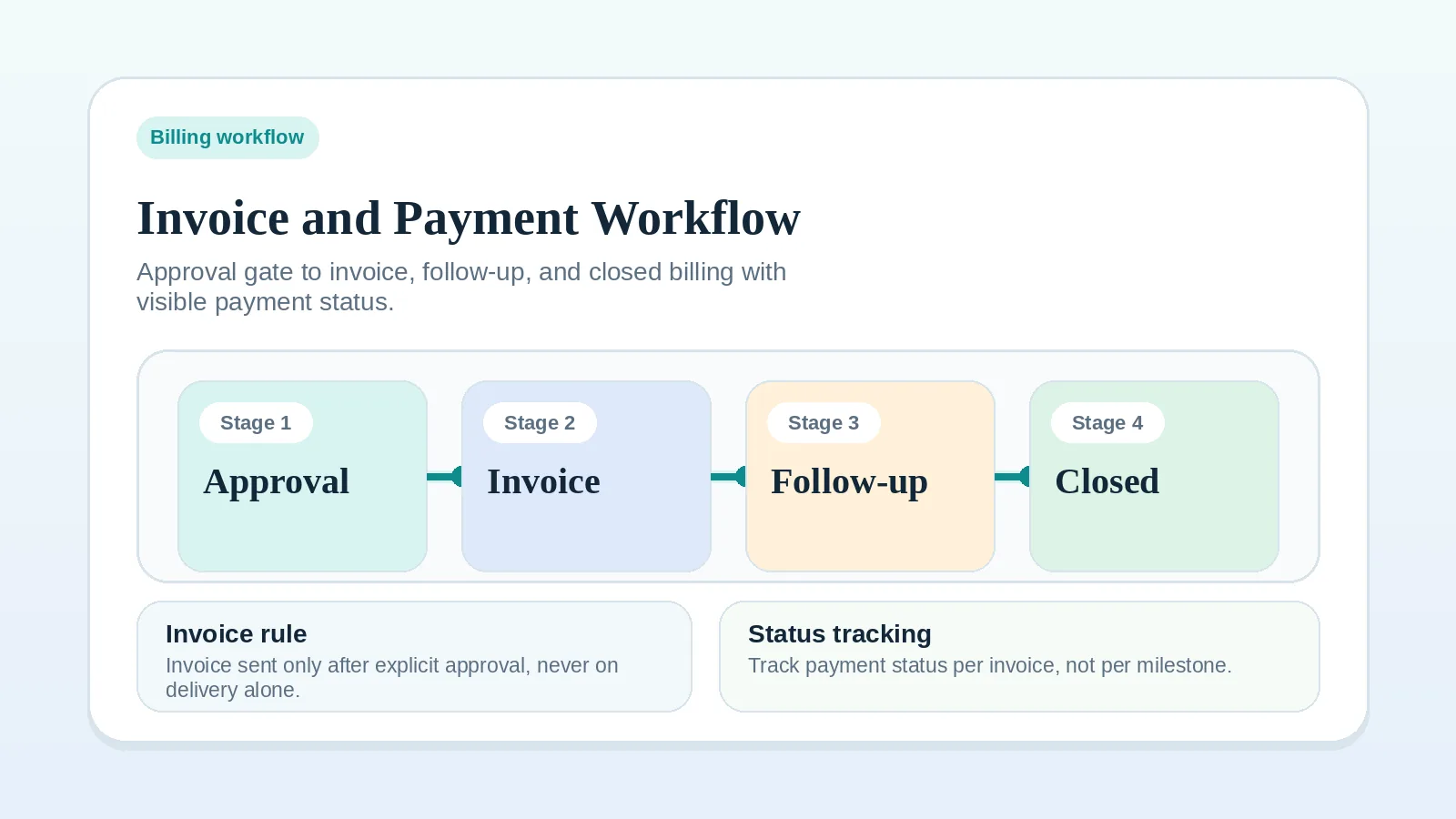
Route: Start with Invoice and Payment Workflow Setup. If the specific question is where billing status should live in the tool stack, add Best Home for Billing Status: Invoicing Tool vs System of Record.


Category 4: Tool or system-of-record problem

Check every signal that is true:

  • You cannot name where active client truth lives — the CRM, the PM workspace, the inbox, or a spreadsheet.
  • Two or more tools claim to track the same client status and they disagree.
  • Updates or notes about a client are split across tools with no single source of record.
  • You are about to buy a new tool but the process it would support is still unclear.
  • A past tool decision made sense but the stack has since grown and now feels scattered.
  • A team member or contractor cannot find client context reliably because it lives in the wrong place.

If two or more apply: The problem is most likely a system-of-record gap, not a workflow execution gap.

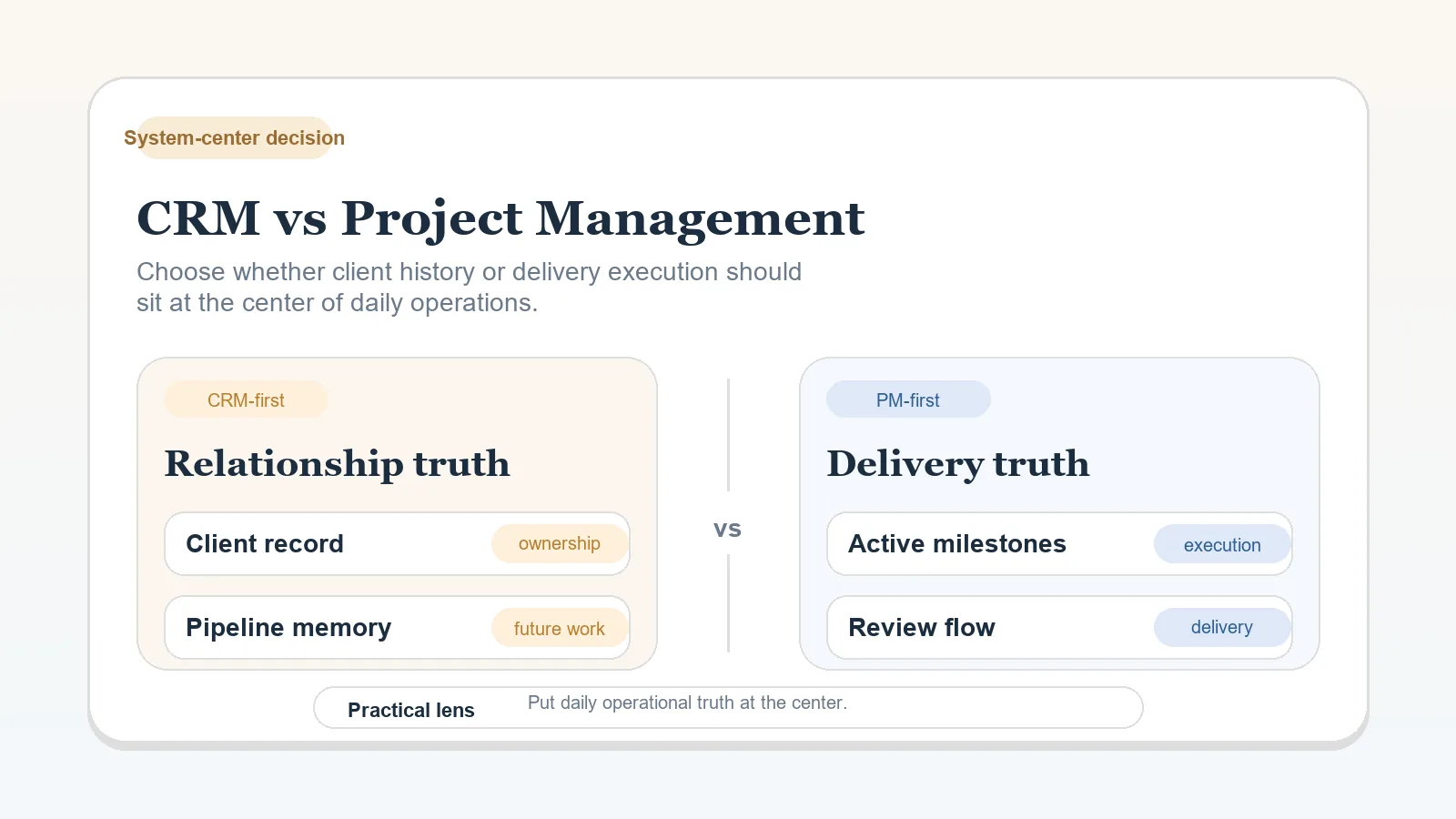
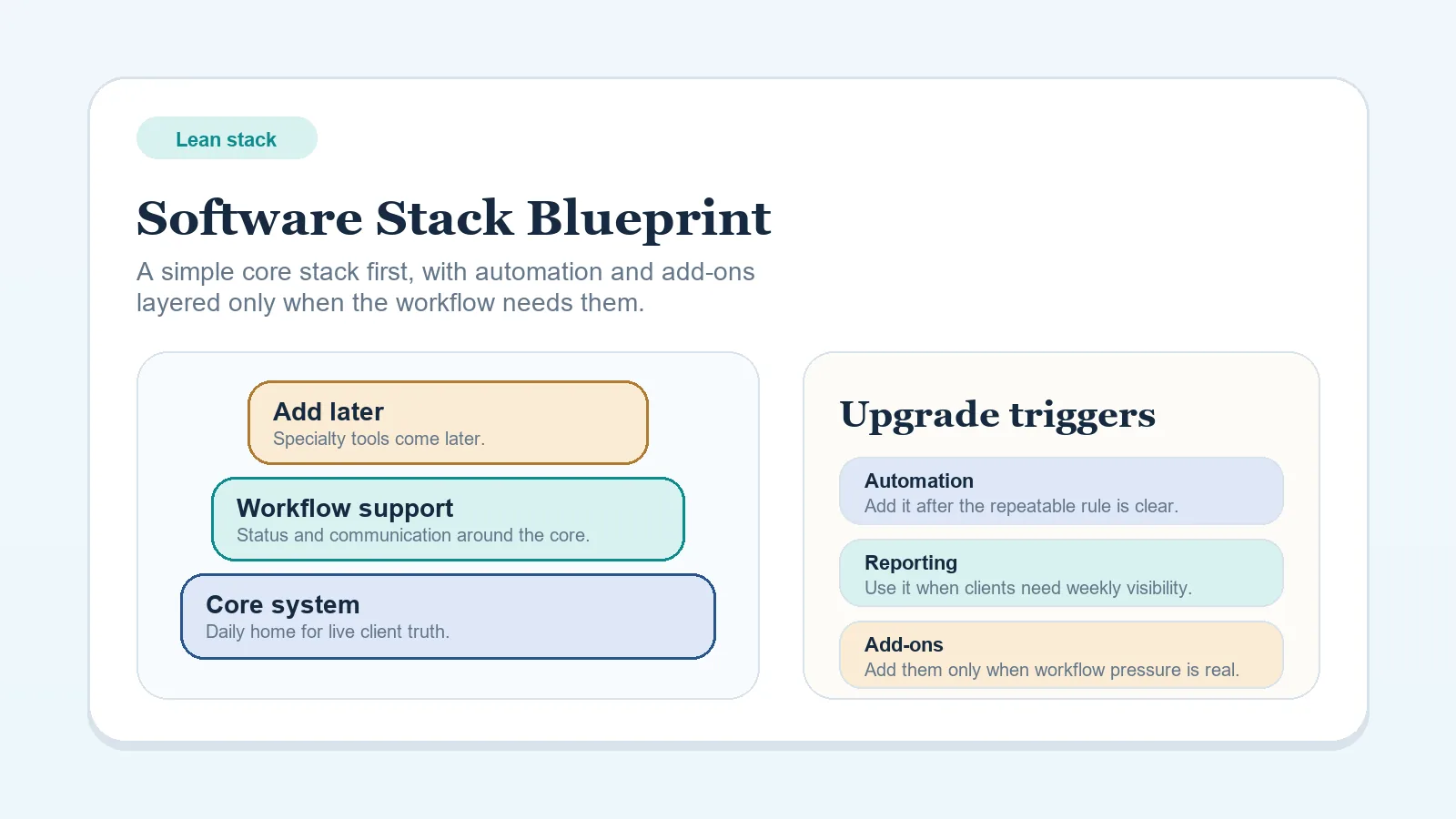
Route: Start with CRM vs Project Management Tool for Client Workflows to decide where client truth should live. Then continue to Software Stack Blueprint: Solo Freelancer (Lean Budget) to implement the stack model.


Category 5: Template or execution-consistency problem

Check every signal that is true:

  • The workflow rule exists and is clear, but repeated actions are still done from memory.
  • Onboarding, weekly updates, delivery QA, or invoice follow-up feel inconsistent across clients.
  • You know what should happen at a specific moment but there is no checklist or template to run it from.
  • A trigger moment — kickoff, milestone close, payment confirmation, project end — keeps being handled differently each time.

If two or more apply: The problem is a template or execution-consistency gap, not a workflow design gap.

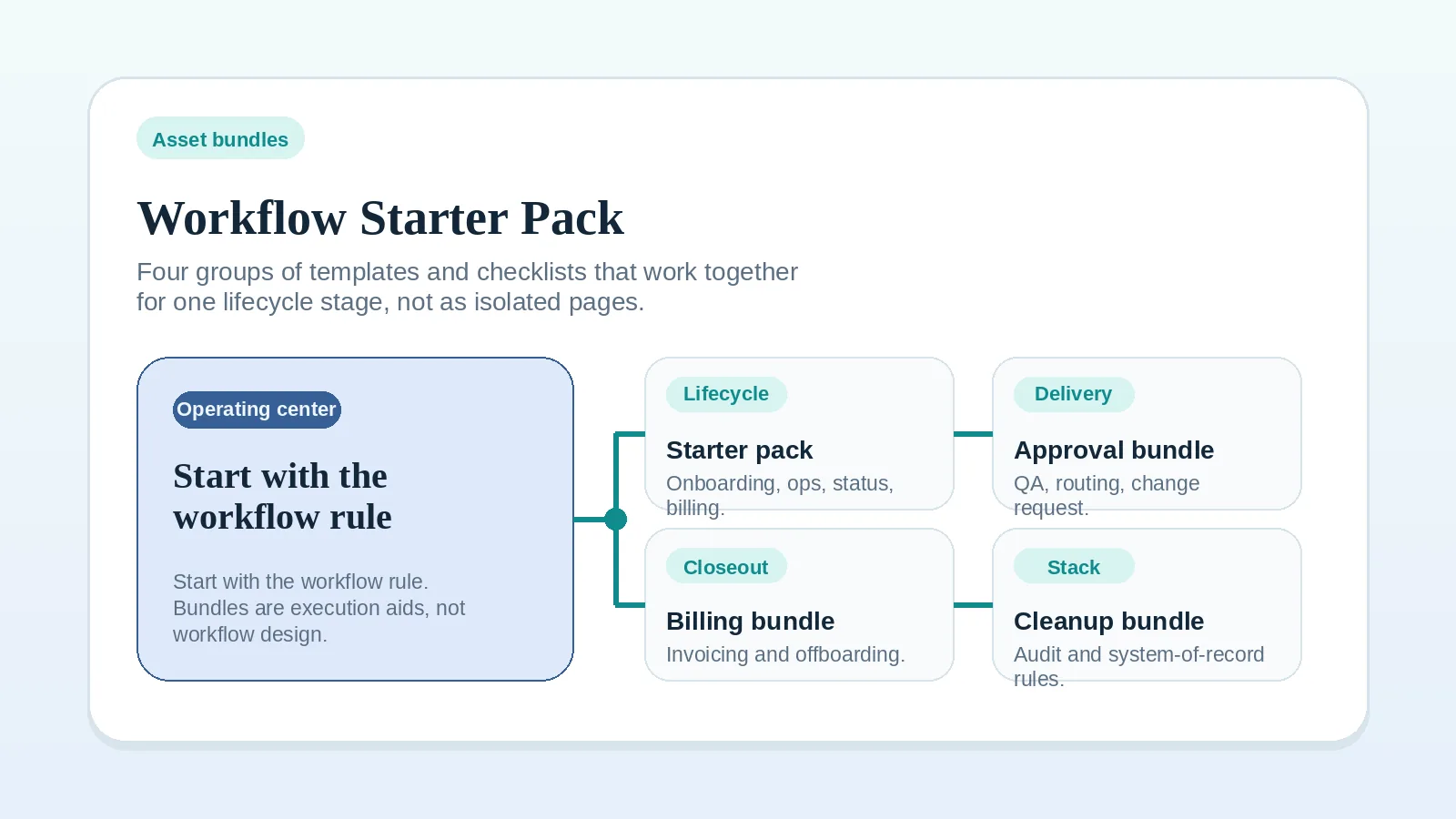
Route: Go to the Workflow Starter Pack to find a bundle of assets organized by lifecycle stage, or use the Templates and Checklists hub to find the exact trigger-moment asset you need.


Category 6: Narrow blocker problem

Check every signal that is true:

  • One specific question is blocking the next action and everything else is clear.
  • The blocker is definitional — you need a term clarified, not a process rebuilt.
  • The blocker is operational — you need to know what to do in one specific scenario, not rethink the whole workflow.

If one or more apply: The problem is a narrow FAQ or glossary blocker.

Route: Go to the Problem-to-Page Guide and scan for your exact symptom. If the blocker is a term, go to the Glossary. If the blocker is a narrow operational question, go to the FAQ hub.


What your answers mean

Most signals in…Problem categoryFirst page to open
Category 1Workflow sequenceFreelance Client Workflow System anchor
Category 2Approval or deliveryFAQ: What Counts as Client Approval?
Category 3Billing or paymentInvoice and Payment Workflow Setup
Category 4Tool or system of recordCRM vs Project Management for Client Workflows
Category 5Execution consistencyWorkflow Starter Pack
Category 6Narrow blockerProblem-to-Page Guide

If no category clearly wins, or if more than three categories each have multiple signals, the problem is most likely a workflow sequence gap — start at the workflow anchor and work stage by stage.

Do not start with software if…

  • the workflow sequence is still fuzzy,
  • the approval owner is not yet named,
  • billing triggers are not yet tied to explicit approval,
  • you cannot describe what changes the moment a deal closes.

Adding tools before the workflow is clear typically adds maintenance cost without fixing the underlying process gap. Resolve the category first, then let the right page guide the tool or template decision.

Reading sequence from here

This checklist is the diagnose step. Use the routing table above to identify the category, then follow the path that matches your result.

  • Before this checklist: If the whole lifecycle feels unclear rather than one stage, start at Freelance Client Workflow System: Inquiry to Final Payment before running this diagnostic.
  • After a clear single category: Open the first page named in the routing table above and work from there.
  • After an unclear or multi-category result: Use the Client Workflow Health Check to score all eight workflow areas and identify which stage is weakest before committing to a specific workflow page.
  • Once the category and stage are confirmed: Use the Workflow Starter Pack to open the matched set of execution assets for that stage.